Print quilt shapes on fabric with precision — no templates, no guesswork.
Inklingo works wherever you quilt.
Already using Inklingo? Sign into the Studio and your Inklingo shape collections and books are waiting in your Library.
- Download for Windows
- Download for Mac
- Download from the App Store (iPad)
- Get it on Google Play (Android)
New to Inklingo? Start FREE
- Order the FREE Diamond Triangle Square shape collection and the new Guided Tour.
- Download the FREE Studio.
- Follow the Guided Tour to print your first sheet of fabric.
Security Warning?
Microsoft and Apple are cautious about newly downloaded apps. You may see a security warning when you download or open the Inklingo Quilt Studio.
The Studio is safe when you download it from the Inklingo website, this page.
The message you see depends on where the download was stopped.
1. Edge says it won’t download InklingoSetup?
If Microsoft Edge stops the file before it reaches your Downloads folder:
- Look near the top-right corner of Edge for the Downloads symbol ↓ (a downward arrow) or click Ctrl-J to open the Downloads folder.
- Find InklingoSetup in the Downloads folder, shown in the first step below.
- Click the three dots (…) beside it.
- Choose Keep.
- If you see another warning, choose Show more, then Keep anyway, as shown below.
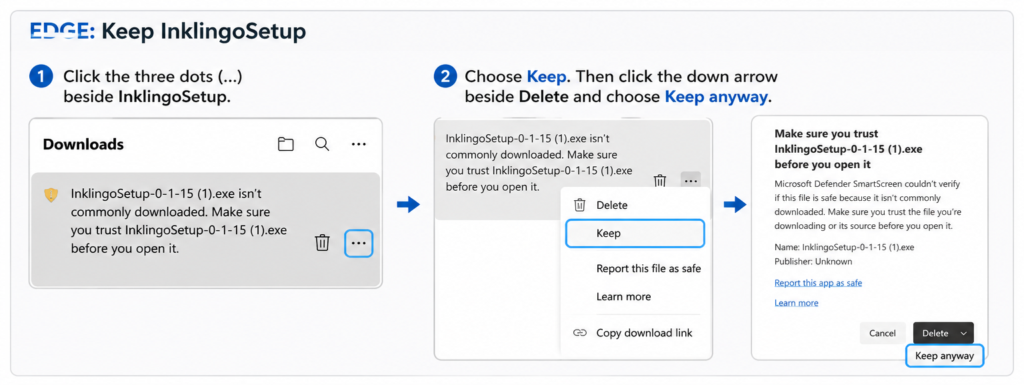
You do not need to report the file to Microsoft or wait for Microsoft to approve it.
Once InklingoSetup has downloaded, open it to install the Studio.
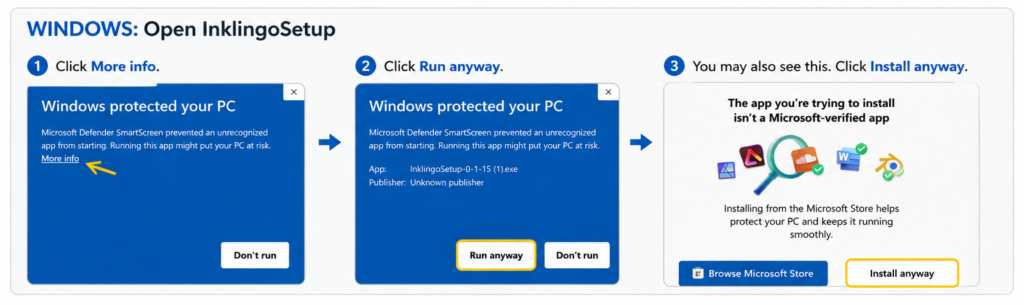
2. Windows downloaded it but won’t open it?
If InklingoSetup is already in your Downloads folder but Windows displays a security warning when you try to open it:
Look for More info in the warning.
Click More info, then choose Run anyway — not Run away 🙂
If the “More info” option is not available:
- Open your Downloads folder (downward arrow or click Ctrl-J).
- Right-click InklingoSetup in the Downloads folder and choose Properties.
- Near the bottom of the General tab, look for Unblock.
- Check Unblock (if you see it), then click OK.
- Double-click InklingoSetup again.
If the download shows “Unconfirmed” or .crdownload, it just needs a moment more.
3. Mac says it cannot open the Studio?
If your Mac prevents the Studio from opening:
- Open System Settings.
- Choose Privacy & Security.
- Scroll down until you see the message about Inklingo Quilt Studio.
- Click Open Anyway.
- Confirm that you want to open it.
You should only need to do this the first time.
Still stuck?
Please don’t struggle with it. I’m here to help.
Take a screenshot of the message you see and send it to me, Linda @ lindafranz.com. It is much easier to help when I can see exactly what your computer is telling you.
We can figure it out together.
Your Inklingo Library comes with you.
Logging in is the same whether you use Windows, Mac, iPad, or Android.
Sign in with your usual Inklingo email address and password. Your shape collections and books appear automatically.
There is nothing to transfer from your computer.
Simply closing the Studio keeps you signed in; choosing Log Out does not.
Everything is easier in the Studio.
If you tried Inklingo in the past, welcome back!
There’s no need to download shape collection PDFs or open them in Adobe Reader anymore. Sign in to the Studio and your Inklingo Library is right there.
Choose your shapes, choose your page size, and print.
Print. Cut. Sew.
1. You no longer need Adobe Reader for Inklingo. Printing with the Studio is simpler and designed especially for Inklingo.
2. You no longer need to cut freezer paper to a custom size.
Print your first sheet of fabric in minutes with the new Guided Tour.
Take Inklingo with you.
The same Inklingo Library you use on Windows or Mac is now available on your iPad or Android tablet.
Take it to the couch, the printer, your local quilt shop, or your next guild meeting.
Wherever quilting takes you, Inklingo can go too.
Help make Inklingo even better.
I’d love to hear what you think. If you discover something you love—or something that could be even better—please let me know.
Your suggestions have helped shape Inklingo from the beginning.
Print. Cut. Sew.
I am very grateful to all the testers. We kept refining and refining — all the way to version 15.
 Welcome!
Linda & Monkey in Canada